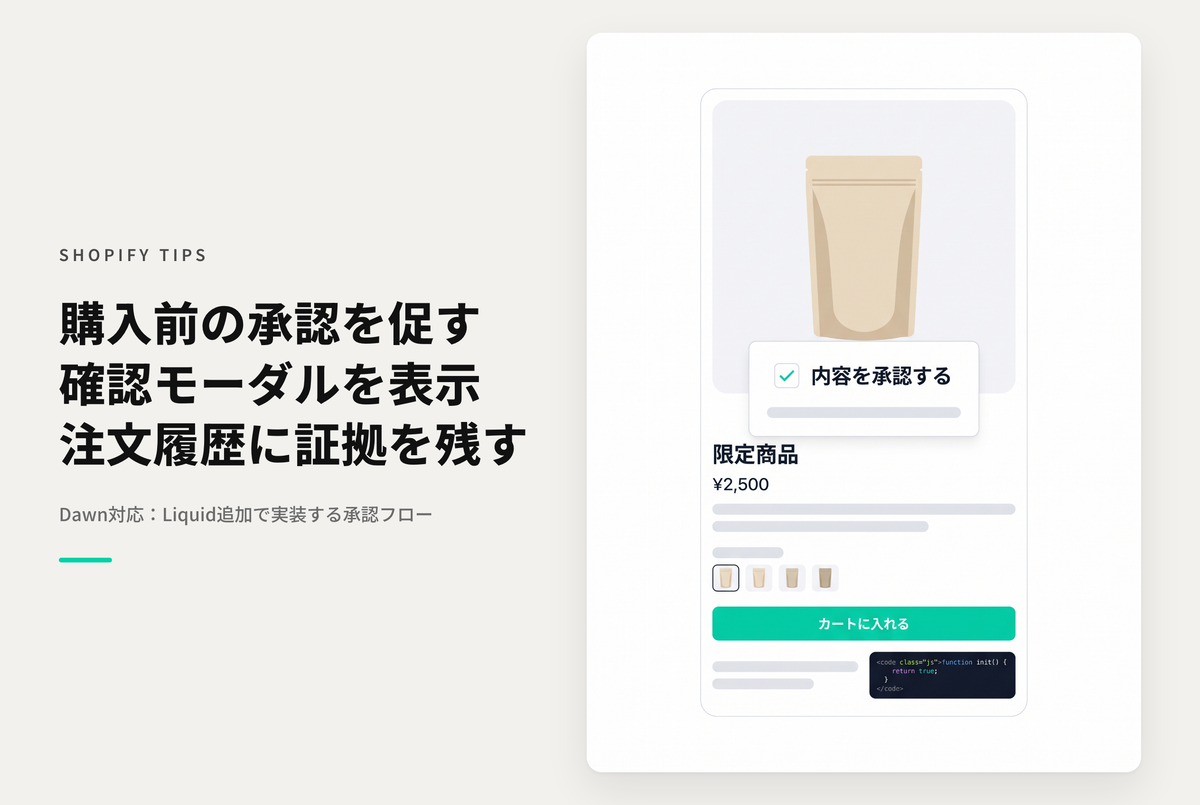
If you want to display information that requires approval before a purchase, this method displays a modal window and prevents further display once approval is obtained. By using cart attributes to retain the approval status, you can leave evidence of approval in the order information.
Since there is an additional step in between, the rate of adding to cart will decrease, but it is expected to be used when approval is still required.
◆Benefits of implementation ・It will be displayed multiple times until it is approved, and once it has been approved, it will not be displayed again even for other products.
- Since it does not directly operate the "Add to Cart" button event, the impact on the purchase action is minimal
◆Specific steps ・Add a "Customized Liquid Section" to the product template ・Insert code for approval check
◆ Usage scenarios ・Sale of limited quantity products ・Products that can only be sold under certain conditions ・Products that require strict inventory management, etc.
Example of setting to display a pre-approval modal before ordering on the product details screen of the theme "Rise/Dawn"

How to set it up: Add a customized Liquid section to your product template and insert the code.

[Additional Information] The order information will show that it has been approved.