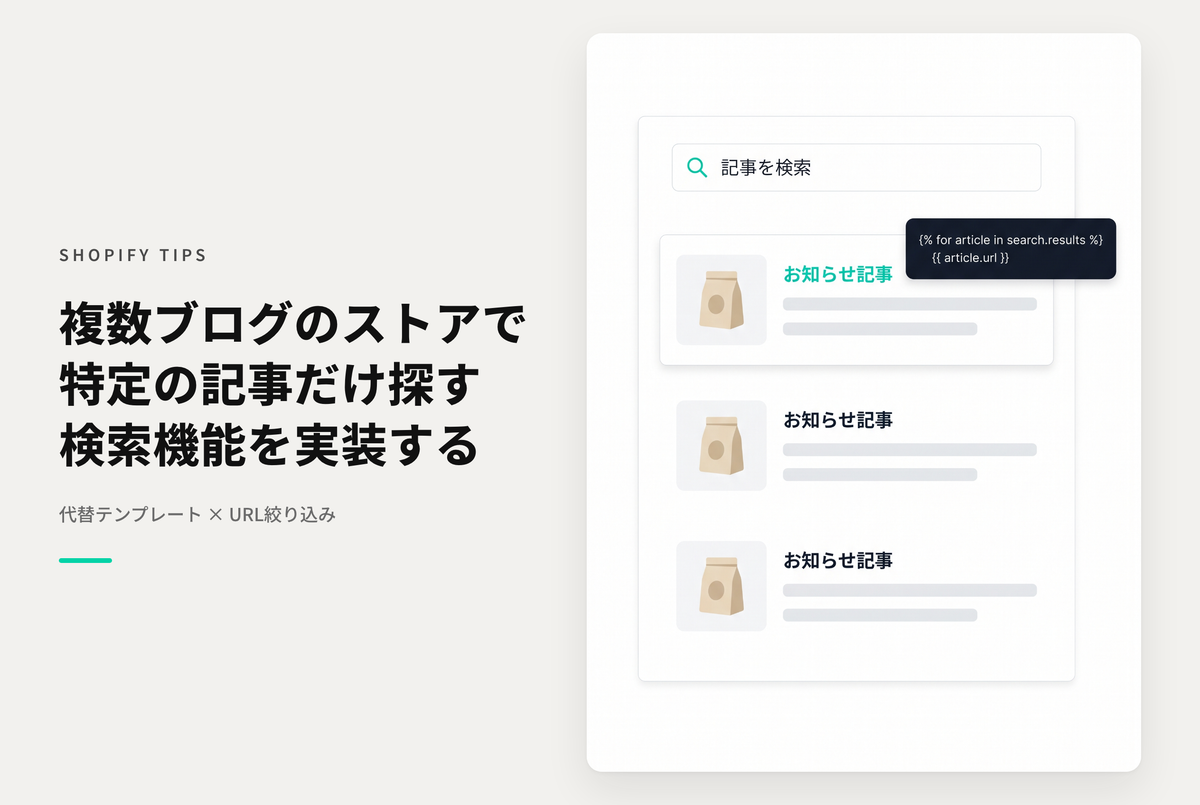
Shopify storefront search can be narrowed to articles with /search?q=keyword&type=article, but it always spans every blog in the store, and there is no parameter to limit it to one blog. If your store runs more than one blog, articles from the other blogs end up in the results. This TIPS shows how to scope the search to a single blog without changing a single vendor file.

A search form on the blog page, and a results page that lists only the articles of that blog. With several blogs, each one can have its own search.
[Relation to earlier TIPS] The earlier article search for Dawn blogs carried the caveat "for stores with only one blog" precisely because of this limitation. This is its sequel, usable on stores with several blogs. The approach is close to searching only the FAQ pages: the filter is based on the URL.
What happens with the regular search
Even with type=article, Shopify returns articles from every blog in the store. Below is a search for "Horizon" on a store that runs a News blog and a Journal blog; the three results in the red box belong to the Journal blog.

How it works (three pieces)

1. An alternate template (?view=) for the results page
When a URL carries a view parameter, Shopify renders templates/search.{name}.json. The regular /search keeps working exactly as before while you add a dedicated results page for the blog.
2. Filter by the article URL
Let Shopify run the search, then walk through search.results and drop every article that does not belong to the target blog. The URL is the reliable signal: an article of the target blog always contains /blogs/<blog handle>/.
3. Ship both parts as theme blocks
The entry form and the results list are separate theme blocks. Neither occupies a section of its own, and both are placed from "Add block" in the theme editor. The form passes type=article and view={name} as hidden fields, so the visitor only types a keyword.
Files
Three new files, no existing file is modified.

blocks/blog-search-form.liquid(new) — the search form placed on the blog pageblocks/blog-search-results.liquid(new) — the results page: form plus the filtered article listtemplates/search.blog-search.json(new) — the results page template, carrying that second block inside Horizon's stock "section"
sections/main-blog.liquid is not touched: you simply add the block from the theme editor. Do not hand-edit templates/blog.json either — the theme editor rewrites it.
templates/search.blog-search.json only declares "place one of Horizon's stock sections and put the results block inside it". Settings you leave out fall back to their defaults, so that is enough.
Do not prefix the block filename with _. A leading _ makes the block unavailable on the blog page and forces a vendor file edit.
Setting it up in the theme editor
Both screens are built from "Add block". The results page, however, does not appear in the theme editor's page picker: there is only one "Search" entry, and alternate templates are not listed. You reach it by building the URL yourself.
1. Place the search form on the blog page
Open Online Store → Themes → Customize, then pick the blog from the page selector. In the sidebar, under Template, use Add block below "Blog posts" → category "Forms" → Blog search form.
Set Destination template view name to blog-search and save.

2. Open the results page by URL
The editor URL you are on looks like this:
https://admin.shopify.com/store/{store}/themes/{theme id}/editor?previewPath=...
Keep everything up to /editor and replace what follows ? with:
?previewPath=%2Fsearch%3Fq%3Dtest%26type%3Darticle%26view%3Dblog-search
That is the URL-encoded form of /search?q=test&type=article&view=blog-search. Put a keyword that actually returns results in q so you can see the list. The view value has to match the filename of templates/search.{name}.json.
Enter your store handle and theme ID to get the exact URL. Both are readable from the editor URL you are on: .../store/here/themes/here/editor...
If it opened correctly, the template name at the top left of the editor reads search.blog-search. If it still says "Search", you are on the default search template.
3. Place the block on the results page
In the sidebar, under Template, use Add block below "Section" → category "Forms" → Blog search results. Pick the target blog in Search target blog, set Items fetched per page, and save. There is no view name to enter here — it is derived from the template the block sits on.

[Careful] A typo in the view name fails silently. An unknown view raises no error; Shopify simply renders the default templates/search.json, i.e. the ordinary search results. Check that the name matches in both places: the form block and the template filename.
Running more than one blog
Each blog needs two templates. Not just the results one — the blog page has to be split as well. The view name is stored as a form block setting inside templates/blog.json, so if several blogs share that file they all send the same view name and every search lands on the same blog's results.
To add another blog:
- Create
templates/blog.{name}.jsonand assign it as the theme template in the blog's settings (Content → Blog posts → Manage blogs → the blog) - Open that blog page in the theme editor, add the form block and set
Destination template view nameto the new name - Create
templates/search.{name}.jsonunder the same name (a copy of the existing one is fine) - Open it with the step 2 URL (swapping
viewfor the new name) and set the results block'sSearch target blogto the new blog
Only template JSON multiplies; the two files under blocks/ are shared by every blog.

Caveat: pagination is calculated before the filter
The number of pages is decided by the cross-blog hit count that Shopify returns, and the other blogs' articles are removed afterwards. As a result, a page can hold fewer items than the configured amount. If the other blogs' articles happen to cluster on the last page, that page can even come out empty.
Measured example (a store with 1,672 articles in the target blog and 46 in other blogs, searching for "Flow"):
- Hits returned by Shopify: 171
- Shown as target-blog articles: 156
- Removed as other-blog articles: 15
- Items per page: 20, 20, 20, 20, 20, 20, 20, 16, 0
Mitigation: raise the {% paginate %} amount (the ceiling is 250; anything larger is rounded down to 250). Fewer pages means fewer empty or unusually short ones. Around 50 works well in practice and is exposed as a block setting.

What not to do: never "fetch 50 and render only the first 20". Items 21 and beyond would then appear on no page at all, and results would silently go missing. Render the whole filtered set.
Notes
- Why
viewand not a custom parameter: Liquid cannot read arbitrary query parameters. Therequestobject only exposesdesign_mode,visual_preview_mode,page_type,host,origin,pathandlocale— no query string. Sending something like/search?blog=newswould leave nothing on the Liquid side to read it, so the dispatch goes throughview, which Shopify itself consumes to pick the template - The search covers article body, title and tags. If you store values such as year and month in tags, those become searchable too
- The filters of Shopify's Search & Discovery app are for products only and do not apply to blog articles
- The form on the results page can be hidden through a setting. It is shown by default so visitors can search again from the results
Sample code
The full source of all three files is included with your purchase.