![[Horizon] Submenu display changes by Media type setting](http://store-dojo.com/cdn/shop/files/2026-03-14_en.png?v=1773479710&width=1946)
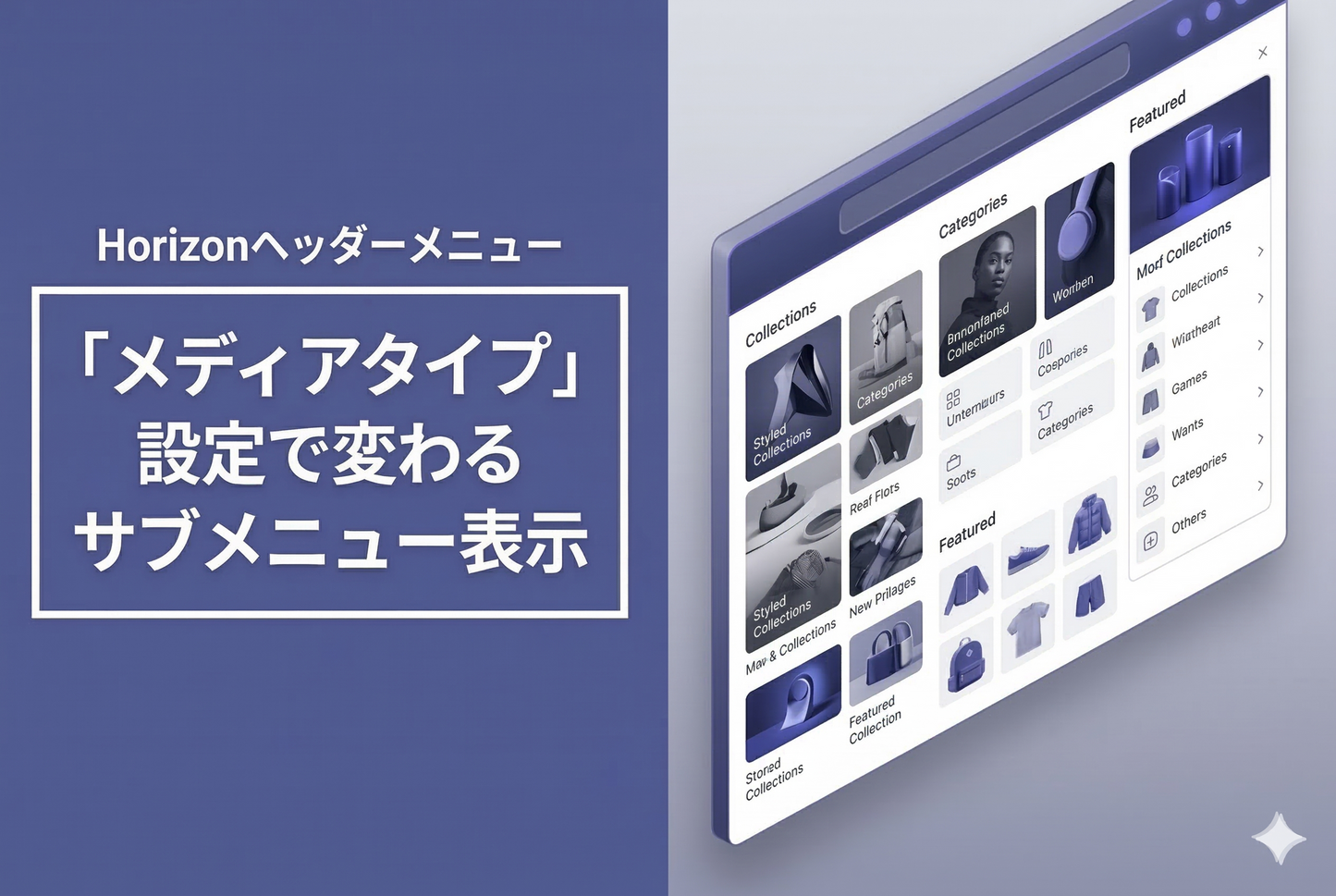
In the Horizon theme's desktop menu, hovering over a top-level menu item reveals a submenu (mega menu). The content displayed in this submenu can be changed using the "Media type" setting within the menu block in the theme editor, but it's not obvious what each option does just from its name — so here's a summary.
The 4 "Media type" options
The setting is located at Theme editor → Header → Menu block → Submenu featured → Media type. The options are "None," "Collection images," "Featured products," and "Featured collections." Since "None" only shows text links, we'll explain the differences between the 3 options that involve images.
Comparing the 3 patterns
Below is a comparison using the same navigation structure (WOMEN → WOMEN-TOPS / WOMEN-BOTTOMS / WOMAN-ONEPIECE) with only the media type changed.

Collection images does not show the text link list — instead, it displays collection images from the child menus in a horizontal grid. The layout is fundamentally different from the other two options.
Featured products shows text links on the left and product cards (image, product name, price) on the right. An important thing to note is that the products are sourced from the top-level (parent) collection, not from the child menu's collection. When hovering over "WOMEN," the products displayed come from /collections/women, not from "WOMEN - TOPS."
Featured collections shows text links on the left and collection cards (image with collection name overlay) on the right. While "Featured products" pulls products from the parent collection, this option displays the parent + child collections themselves as cards.
When images are not displayed
In all modes, if the menu link destination is not a collection type (collection, catalog, or collection list), images cannot be retrieved and the display automatically falls back to text only. Images will not appear for links to blogs, pages, or external URLs. To take advantage of the media type feature, set your navigation links to collections.