

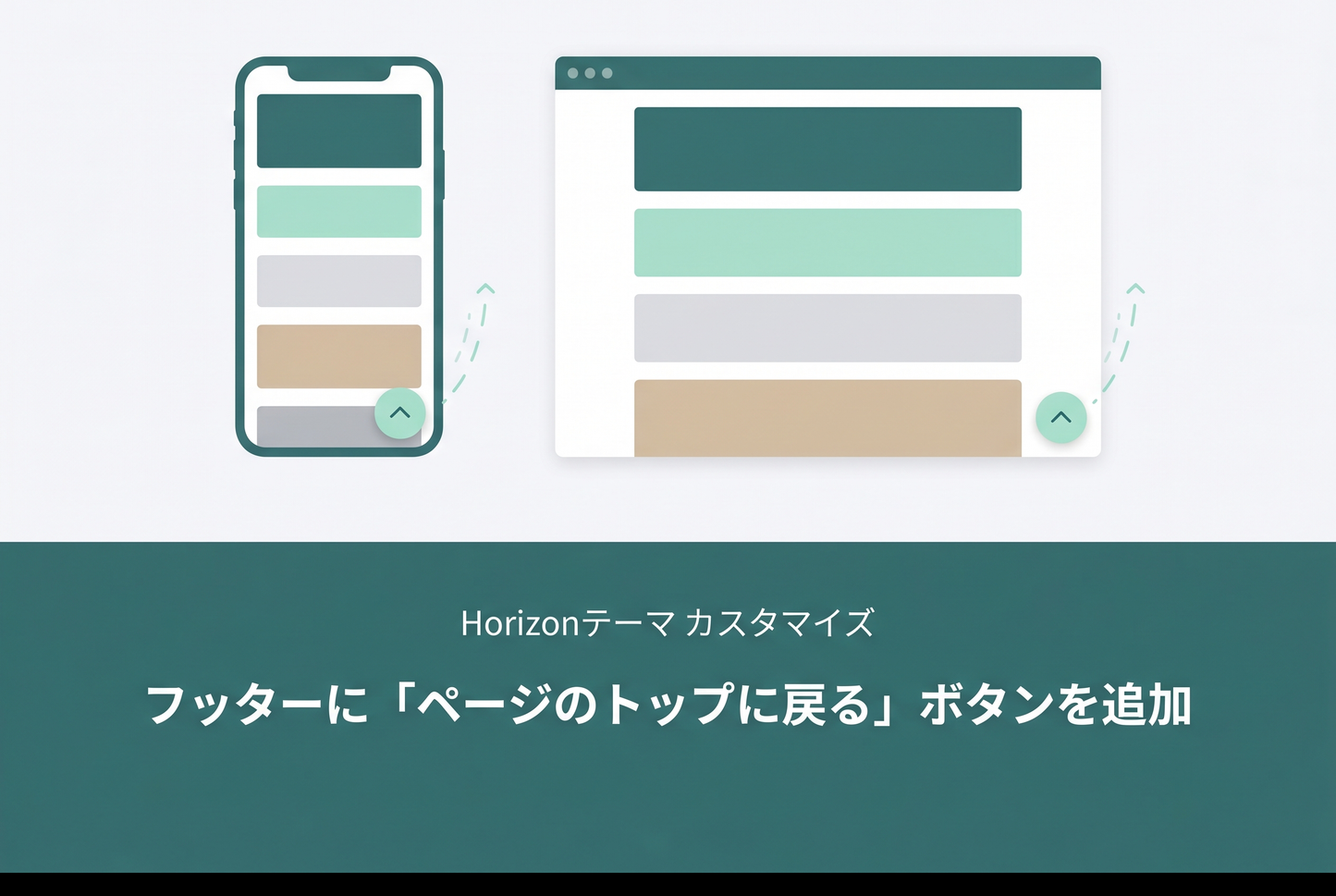
Add a "Back to top" floating button to your Horizon footer as a theme editor block. It's implemented as a private block scoped to the footer section, so it won't appear in other sections' add-block menus. Color, size, icon thickness, shadow, position, and shape are all configurable from the theme editor.

How it works
You add a new private block blocks/_back-to-top.liquid and register it in the footer section's (sections/footer.liquid) blocks array, which makes it appear in the theme editor's "Add Block" menu. Private blocks (filename prefixed with _) are scoped to the footer only, so they don't appear in other sections.
The footer's .footer-content has contain: content, which makes any position: fixed descendants positioned relative to .footer-content instead of the viewport. To work around this, the block's JavaScript moves the button to document.body on initialization, restoring viewport-relative positioning.
Files to add or modify
| File path | Action |
|---|---|
blocks/_back-to-top.liquid |
Create new file (248 lines) |
sections/footer.liquid |
Add 3 lines at L105–L107 (in the blocks array) |
locales/ja.schema.json |
Add keys to names / settings / content sections |
locales/en.default.schema.json |
Add keys to names / settings / content sections |
Line numbers are based on the vanilla Horizon theme (v3.5.1).
Steps
- Shopify admin → Themes → Edit code
- Create
_back-to-top.liquidin theblocks/folder and paste the downloaded code - Open
sections/footer.liquidand add{"type": "_back-to-top"}to theblocksarray in the schema - Add the translation keys to
locales/ja.schema.jsonandlocales/en.default.schema.json - Open the theme editor, go to the footer section, click "Add block" → "Back to top"
- Customize color, size, icon thickness, shadow, position, and shape

File to add: blocks/_back-to-top.liquid
Paste the entire code as a new file. The first half is the template/style/script, and the second half is the schema definition.


File to modify: sections/footer.liquid
Add _back-to-top to the blocks array in the schema, between @app and button (lines L105–L107).

Files to modify: locales/ja.schema.json / locales/en.default.schema.json
Add the same translation keys to both locale files so the theme editor labels are localized correctly. Three sections need updating: names, settings, and content.

Block settings
| Section | Setting | Range / Default |
|---|---|---|
| Color | Button background | #EEEEEE |
| Icon color | #000000 | |
| Size | Button size | 30–100px / 60 |
| Icon size | 10–50px / 30 (independent of button size) | |
| Icon thickness | 1–10px / 6 | |
| Shadow | Shadow color | #000000 |
| Shadow opacity | 0–100% / 15 | |
| Shadow blur | 0–30px / 8 | |
| Shadow vertical offset | 0–20px / 2 | |
| Behavior | Show after scrolling | 0–1000px / 100 |
| Layout | Position | Bottom right / Bottom left |
| Shape | Circle / Square |
Notes
- Private block (filename starts with
_): The file must be named_back-to-top.liquid. Without the leading underscore, the type reference{"type": "_back-to-top"}insections/footer.liquidwon't match. - All four files must be modified: The block file alone won't work. You need to register it in
footer.liquidand add the translation keys to both locale files. - Theme update impact: If
sections/footer.liquidorlocales/*.schema.jsonare updated by future Horizon releases, you'll need to re-apply your additions. vector-effect: non-scaling-stroke: This SVG attribute makes the stroke width independent of the icon size. So even at icon_size 20px, a thickness of 1px renders as 1 actual pixel.- JS teleports the button to
document.body: Because.footer-contenthascontain: content,position: fixedwould normally be relative to the footer instead of the viewport. The script moves the button out to escape this containment.
![[Dawn] How to Add a Back to Top of Page Button to Your Footer in Shopify](http://store-dojo.com/cdn/shop/files/2023-05-02.png?v=1736343446&width=533)
![[MetaSync] Hide Extra Sign-up Form Fields Behind an Expand Button to Reduce Form Friction](http://store-dojo.com/cdn/shop/files/2026-09-08_en.png?v=1788839371&width=533)


