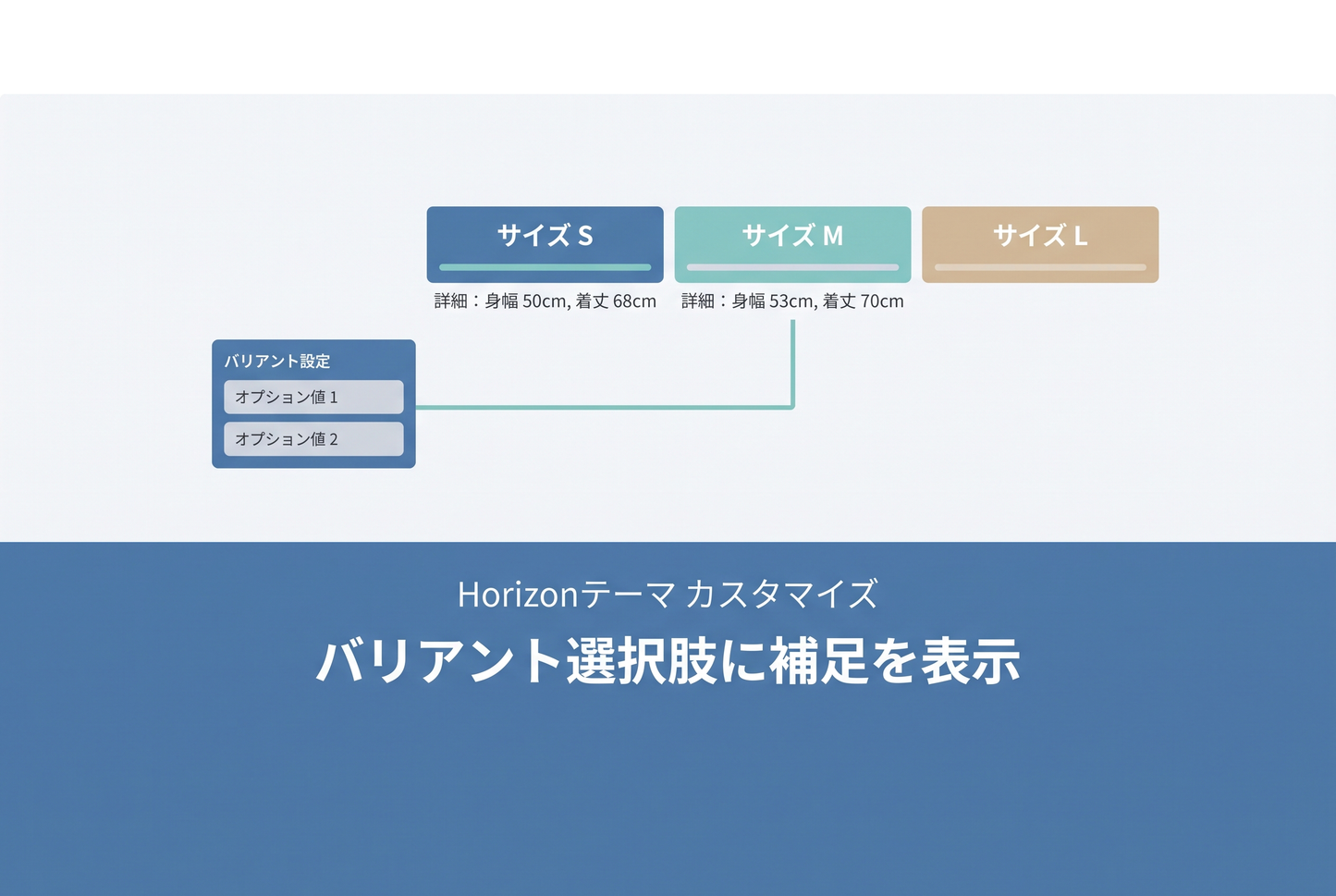
A way to show notes such as "+15,000 JPY", "Made to order" or "Mattress sold separately" directly on the size and color options of a Horizon product page, so shoppers can see the price difference and lead time before they pick. No theme file edits are needed — you only paste code into a Custom Liquid block.

Why variant metafields fall apart here

The note "size costs +8,000" belongs to the size. But a variant is a cross product of color x size x mattress, so putting the note on variants means repeating the same value once per color. Every color you add multiplies the number of entries you have to type.
The opposite is also worth knowing: if the product has only one option, you do not need this method. Each option value maps to exactly one variant, so a variant metafield works as it is. Switch to the setup below only once two or more options are combined.
How it works — put the note on the option value

A metaobject entry holds just three fields: option name, option value, and the note to display. Link the entries to the product and the note is injected only into option values where both the name and the value match. Option values with no entry show nothing, so you register only the ones you want a note on.
Horizon already outputs data-option-name and value on every radio button in the variant picker. Matching those two attributes is enough to locate the option, which is why no theme modification is required.
Step 1 — Create the metaobject definition

◆Where
・Admin → Settings → Custom data → Metaobjects → Add definition
◆What to enter
・Name: Option value note (the type becomes option_value_note automatically)
・Field 1: Option name / Single line text / required
・Field 2: Option value / Single line text / required
・Field 3: Note / Single line text / required
All three are single line text, created in this order. You build this container once and never touch it again.
Step 2 — Add entries and link them to the product

◆Adding entries
・Admin → Content → Metaobjects → "Option value note" → Add entry
・One entry equals one option value. Create only the ones you want a note on.
◆Example entries used in this article
・Color / White / Made to order
・Size / Single / Base size
・Size / Semi-double / +8,000 JPY
・Size / Double / +15,000 JPY
・Mattress / Frame only / Mattress sold separately
・Mattress / Bonnell coil mattress / +20,000 JPY
Copy the option name and value exactly as they appear in the product's variant settings. A single character difference — including spacing — breaks the match, so pasting is safer than typing.
◆Product metafield definition
・Settings → Custom data → Products → Add definition
・Name: Option value note / namespace and key: custom.option_value_notes
・Type: Metaobject reference ("Option value note") with "List of values" enabled
◆Linking
・Open the product, scroll to Metafields, and pick the entries you want in the "Option value note" field. Because you are selecting rather than typing, there is no JSON to hand-write and no syntax errors.
Step 3 — Paste the code into a Custom Liquid block

◆Where
・Online Store → Themes → Customize → switch the template selector to "Products"
・In the left panel expand "Product information" → "Details"
・Choose "Add block" → "Custom Liquid" and place it below the variant picker
・Paste the included code into the "Liquid code" field in the right panel and save
The code is deliberately not split into a snippet. Splitting it raises the question of where to put {% render %}, which ends up requiring a theme file or template JSON edit. Keeping it self-contained in one block keeps the setup to copy and paste.
Implementation notes
◆The injected note disappears on re-render
Horizon morphs and repaints the variant picker every time a variant is selected, so elements added with JavaScript are not preserved. The included code watches for that repaint with a MutationObserver and re-applies the notes. It checks whether a note is already present, so there is no infinite loop and no duplicate insertion.
◆CSS is required
Appending the note without CSS pushes it sideways and breaks the button layout. The code includes CSS that stacks the label and the note vertically.
◆Tidy option lists look better
Horizon's variant picker becomes a two or three column grid depending on label width. Keeping the number of values a multiple of the column count, and keeping labels and notes short enough to fit one line, avoids awkward wrapping and orphaned buttons.
Related: A block that shows a per-variant comment (HTML allowed) on the product page